Manager Forecast Rollup
Last updated: August 21, 2026
The manager forecast rollup is a dedicated surface for managers and sales leaders to review their team's pipeline, adjust deal values and categories, and submit a team-level forecast - all scoped to a specific forecast board.
This page replaces the legacy team forecasting tabs for organizations with forecast boards enabled. Reps continue to submit their forecasts from the Deals page.
Note: If you do not see the rollup surface when you navigate to Forecasts, ask your admin to enable forecast boards for your organization.
Who sees the rollup
The rollup page appears automatically for:
Managers — anyone marked as a manager in Airspeed (has direct reports).
Users with org-wide forecast access — admins or other roles with the "View All Forecasts" permission.
Everyone else (reps without the permission) stays on the standard Forecasts page with their submission history.
Page layout
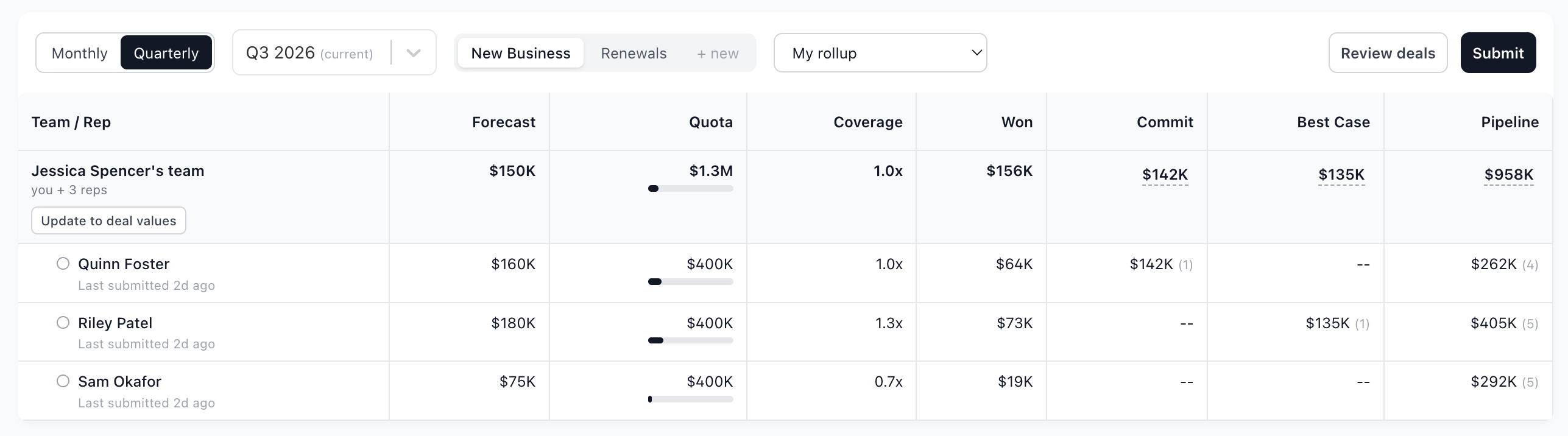
The toolbar at the top includes:
Monthly / Quarterly toggle — switch forecast cadence.
Period selector — choose which forecast period to review.
Board tabs — switch between boards. A "+ new" link takes admins to Settings → Forecasting to create additional boards.
Review deals — opens the review drawer (see below).
Submit — opens the submit modal to commit your team forecast.
The rollup table
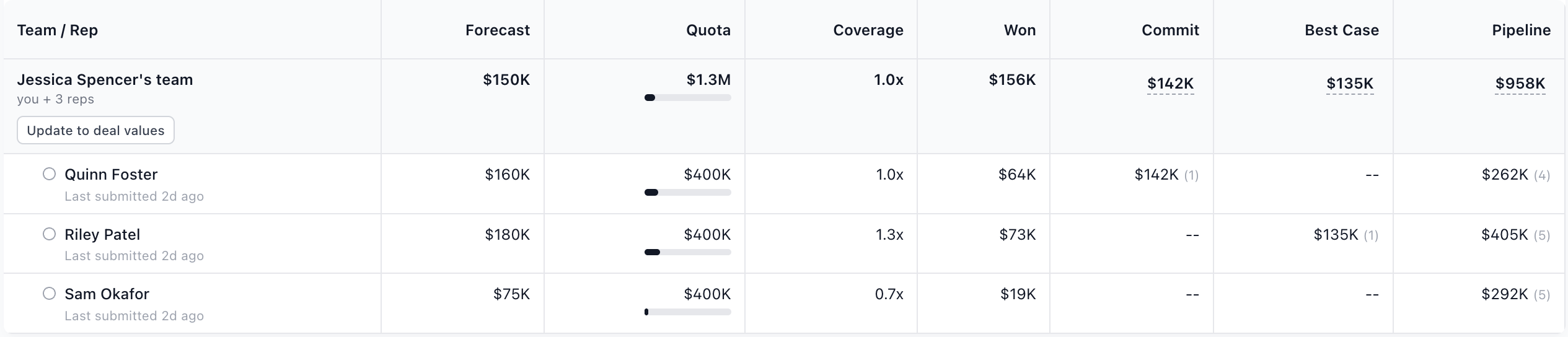
Team row
The top row represents your team as a whole:
Name column - shows "My team" (or "[Your name]'s team" when viewed by someone else), plus a count of reps.
Call - your overall forecast call (the number you commit). Comes from your last submission, or your unsaved draft.
Quota / Attainment - team quota and percentage of quota achieved.
Coverage - pipeline coverage ratio (e.g. 2.5×).
Won - closed-won amount across the team.
Category columns - your stated totals for each forecast category. These are editable: type a number to override the derived value.
Stated totals vs. deal math
Each category cell shows two numbers when they disagree:
The stated total - the number you (the manager) commit to for that category.
The deal math - the sum of deal values for that category, computed from your adjusted deal view.
When these are the same, only one number appears. When they differ, the stated total shows in bold and the deal math appears struck through beneath it. This lets you override with judgment ('I know $50k of this pipeline won't close') while keeping the underlying math visible.
Update to deal values
Click the Update to deal values button on the team row to set every category total to the sum of your adjusted deal values. This is a quick way to reset your stated totals to what the deals say, after you have adjusted inclusions and amounts in the review drawer.
Rep rows
Each row below represents a direct report:
Click any row to open it in the review drawer.
Columns show the rep's submitted call, quota, coverage, won amount, and per-category amounts.
A resubmission indicator appears when a rep has submitted again since your last rollup - click it to see what changed.
Nested managers
If one of your direct reports is themselves a manager, their row shows an expand arrow. Expanding it loads their team's rollup inline, showing their own reports. This works recursively for deep org structures.
The review drawer
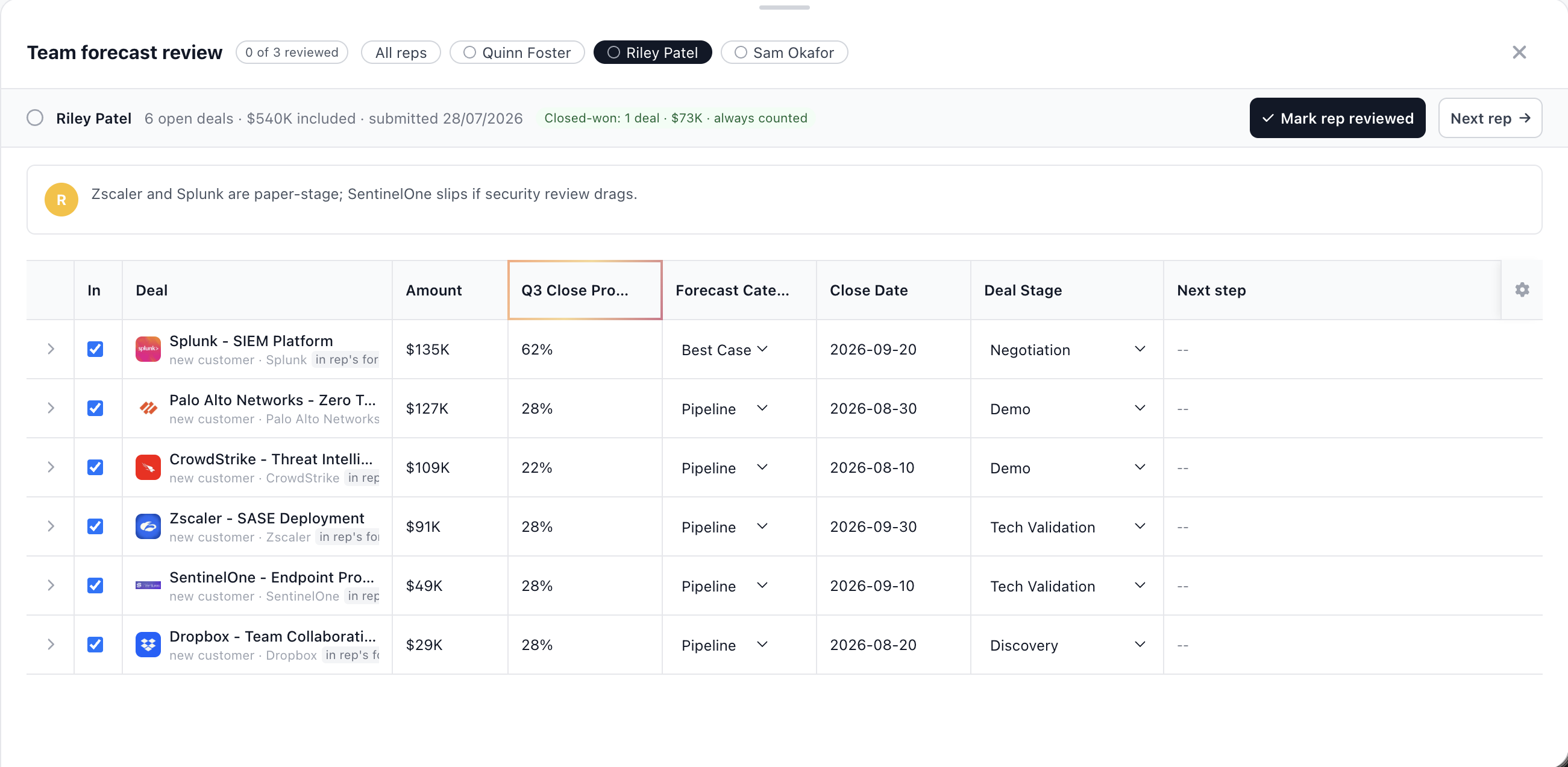
The review drawer is a full-width bottom sheet where you review deals and annotate your forecast. Open it by clicking Review deals in the toolbar or clicking any rep row.
Navigation
Chips — scrollable pills at the top, one per rep plus "All reps." Click to switch. A green checkmark appears on reviewed reps.
Progress counter — shows "X of Y reviewed" so you can track your progress.
Next rep — button to advance to the next report.
Rep summary bar
When viewing a specific rep, a summary bar below the chips shows:
Review status icon (green check or empty circle).
Rep name.
Deal count and included total.
Submission date (or "no submission").
Closed-won badge (when deals have already booked).
Mark rep reviewed button — toggles the rep's reviewed state. Review is a local flag; it resets when the rep resubmits.
Deal inclusion
Each deal row has an inclusion toggle (checkbox in the leftmost column). Toggling it on or off changes whether that deal counts toward your team's numbers:
Included — deal contributes to category totals in the team row.
Excluded — deal does not contribute, even if the rep included it in their own submission.
Your inclusion changes are stored as a delta over the rep's selection (additions and removals), so they are minimal and don't drift as the rep's pipeline changes.
Deal adjustments
You can adjust four fields on any deal inline:
Amount — override the deal value (e.g., you believe a $100k deal is really $75k).
Forecast category — reclassify (e.g., move from Pipeline to Commit).
Close date — override when you expect it to close.
Stage — override the deal stage.
Important: Adjustments are annotations. They never change the CRM. They exist only in your local forecast draft and are submitted as part of your rollup snapshot.
If the CRM value changes after you made an adjustment, a stale indicator appears so you know the underlying data has moved.

Manager reports (nested teams)
When a direct report is a manager, the drawer shows a forecast card instead of deal rows — summarizing their rollup submission (category amounts, call, and comment). Click View full forecast → to drill into their team's deals.
Drilled levels are read-only — you can only annotate your own direct reports' deals.
Column configuration
Click the gear icon (⚙) above the deal table to show or hide columns and reorder them. Your column preferences are saved in your browser.
Submitting the rollup
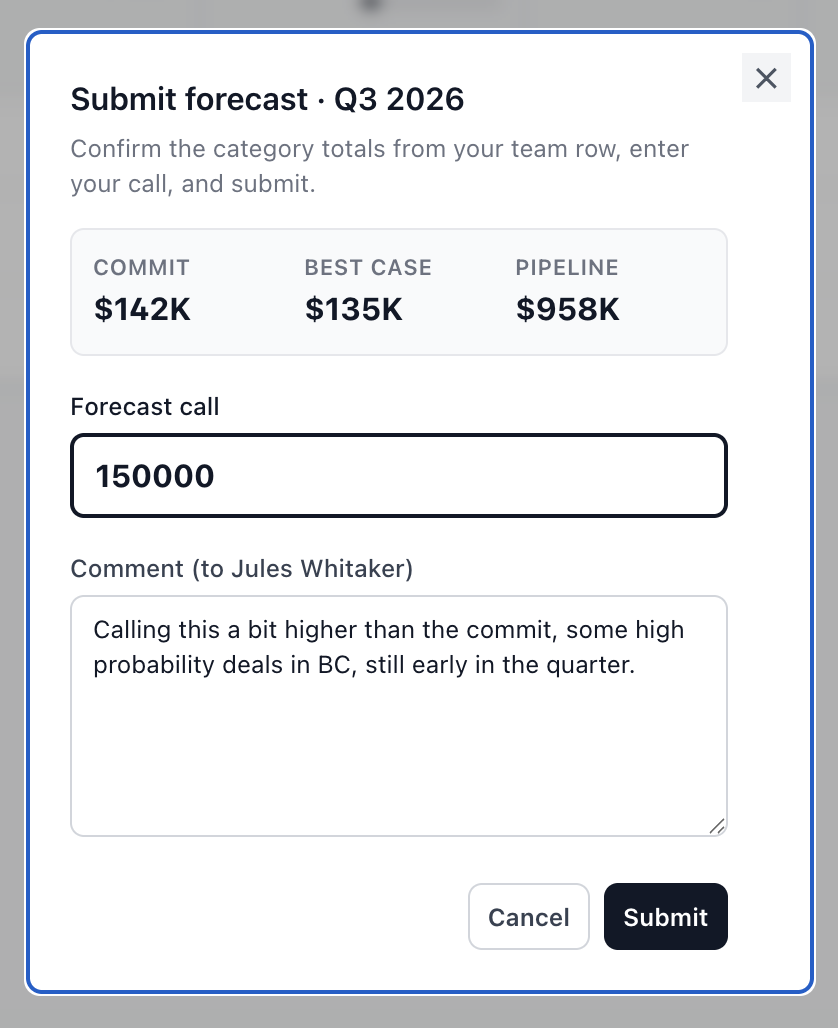
Click Submit in the toolbar to open the submit modal:
Review category totals — the modal shows your stated totals from the team row. These are what you committed in the table; they are not editable here.
Enter your forecast call — a single number representing your bottom-line commitment for the period.
Add a comment — context for your own manager (the comment is addressed to whoever is above you in the reporting chain). The field pre-fills from your last submission.
Submit — posts your rollup.
A nudge shows how many of your reps have submitted in the last week (e.g., "3/5 reps have submitted in the last week") so you know whether you're rolling up stale data.
When Submit is disabled
The Submit button is disabled with a tooltip explaining why in these cases:
You are not a manager.
You are viewing another manager's rollup (View-as).
The selected period has closed.
Forecast data failed to load.
Your draft
All your working state — inclusion deltas, deal adjustments, category overrides, review states, call, and comment — is saved in your browser's local storage while you work. This means:
You can leave the page and come back without losing progress.
Your draft is per browser, not synced across devices.
Submitting freezes a snapshot of your draft into the submission.
The draft is keyed by your user ID + board + period, so switching boards or periods loads a different draft.
FAQ
Do my adjustments change the CRM?
No. Adjustments (amount, category, close date, stage) are annotations that exist only in your forecast draft. They are recorded in your submission snapshot for auditing but never write back to HubSpot or Salesforce.
What is the difference between stated totals and deal math?
Deal math is the raw sum of deal amounts (after your inclusions and adjustments). Stated totals are what you commit — you can override deal math with your judgment. Both are visible in the team row so leadership can see your call alongside the math.
What happens when a rep resubmits after my rollup?
The rep's row shows a resubmission badge. Click it to see what changed. Your next submission will capture the updated rep forecast.
Where is my draft stored?
In your browser's local storage. If you clear browser data or switch devices, you will start fresh. The durable record is the submission itself.
Can I view a past period?
Yes. Use the period selector. Past (closed) periods are view-only — the Submit button is disabled.
Still need help? Reach out to us at support@glyphic.ai.