Quick Actions
Last updated: May 20, 2026
Video Walkthrough of Quick Actions
What are Quick Actions?
Quick Actions are pre-defined prompts that you can save and reuse across Ask Airspeed at the click of a button. Instead of typing out the same question after every call or from every deal page, you set it up once and run it instantly whenever you need it.
You can use Quick Actions on call pages and on company or deal pages. Airspeed also ships a set of suggested actions out of the box — things like drafting a follow-up email or listing competing solutions mentioned on a call — so there is no setup needed to get started.

"Click the lightning bolt icon to open your Quick Actions."
Running a Quick Action
Open any call or deal page in Airspeed.
Click the lightning bolt (⚡) icon at the bottom of the page. This opens the Quick Actions panel.
Click any action button to run it. Ask Airspeed will open and display the result immediately.
You can continue the conversation from there — ask follow-up questions or refine the output.
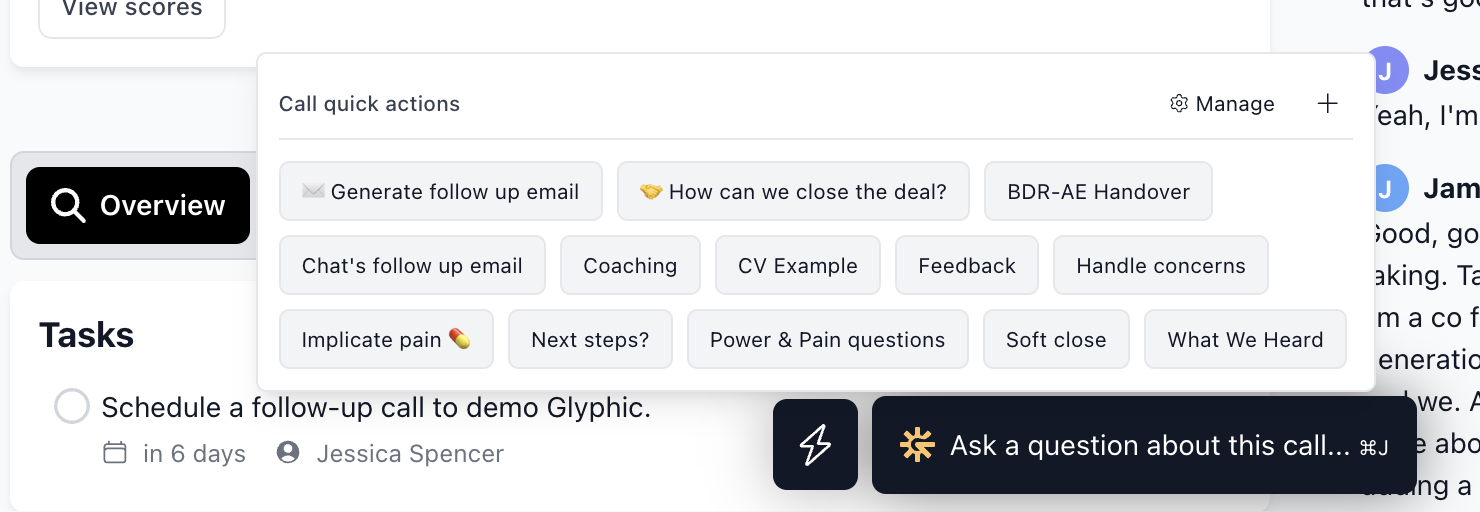
"Your Quick Actions panel, showing available actions for this call."
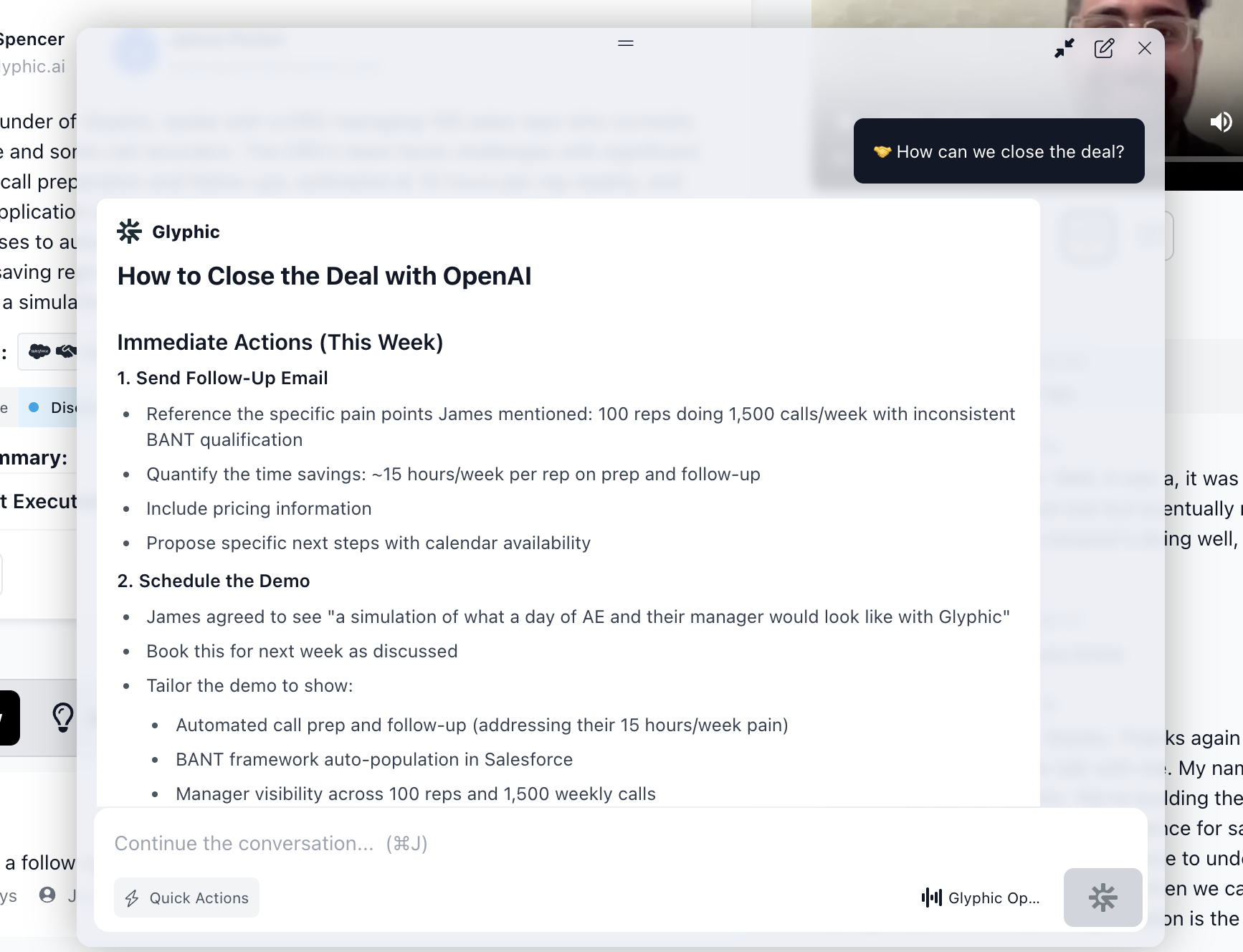
"Ask Airspeed opens with the result. You can continue the conversation from here."
Access Levels
When you create a Quick Action, you choose who can see and use it:
Personal — visible only to you.
Team — visible to everyone in your team.
Organization — visible to everyone in your organization.
Airspeed-provided actions (labelled as suggested actions) are available to your whole organization by default. You can hide any action you do not want to see — it will still be there if you need it later.
Creating a Quick Action
There are two ways to create a Quick Action:
From a conversation
Run Ask Airspeed with the question you want to save.
Once you have a response you are happy with, click the Create quick action option. Airspeed will pre-fill the title and prompt from your conversation.
Adjust the title and set the access level, then save.
From Settings
Go to Settings > Quick Actions.
Click Create Quick Action.
Fill in a title, the prompt text, and choose whether it applies to Calls or Companies.
Set the access level (Personal, Team, or Organization).
Save. The action will appear immediately in your Quick Actions panel.
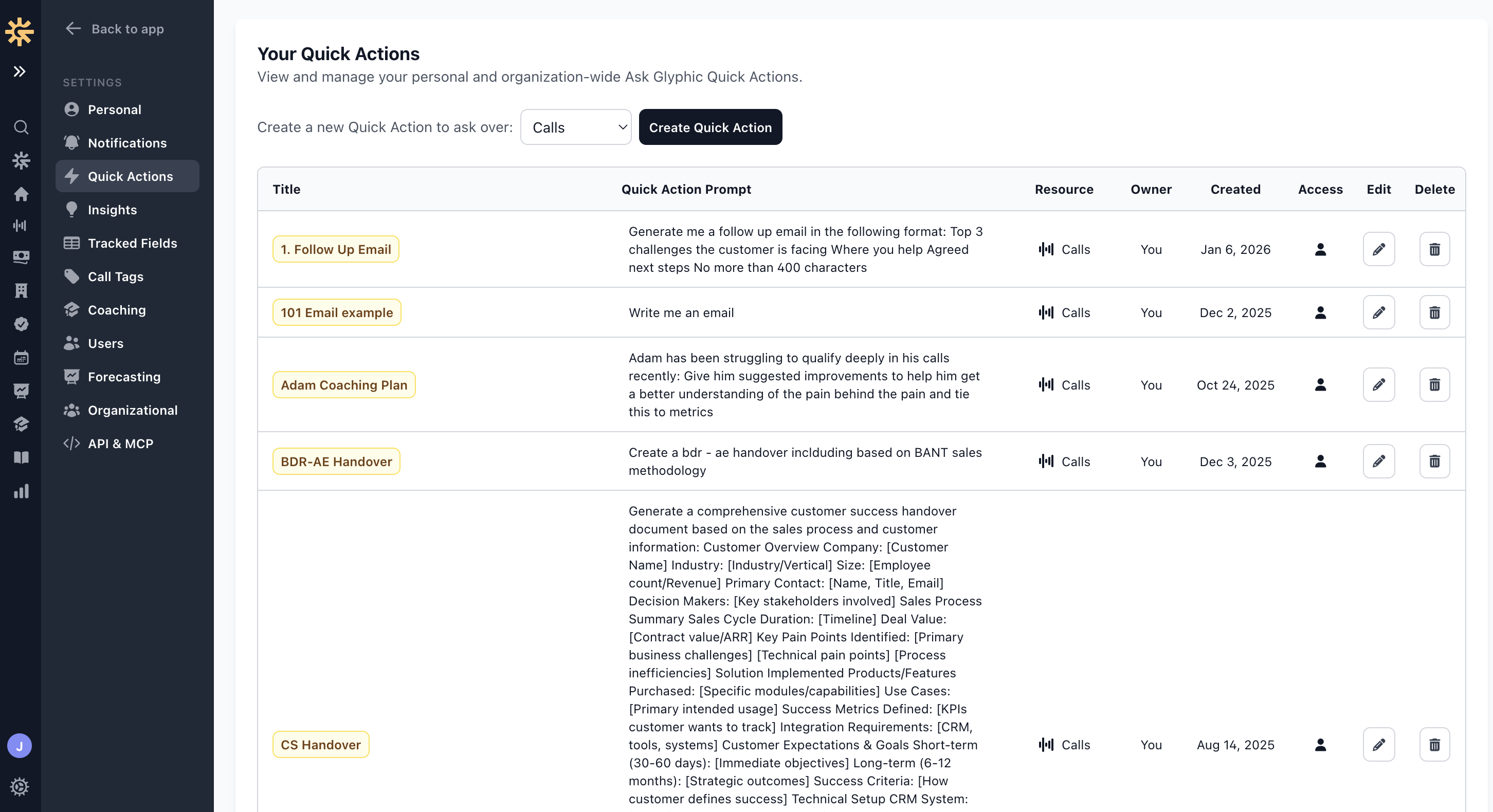
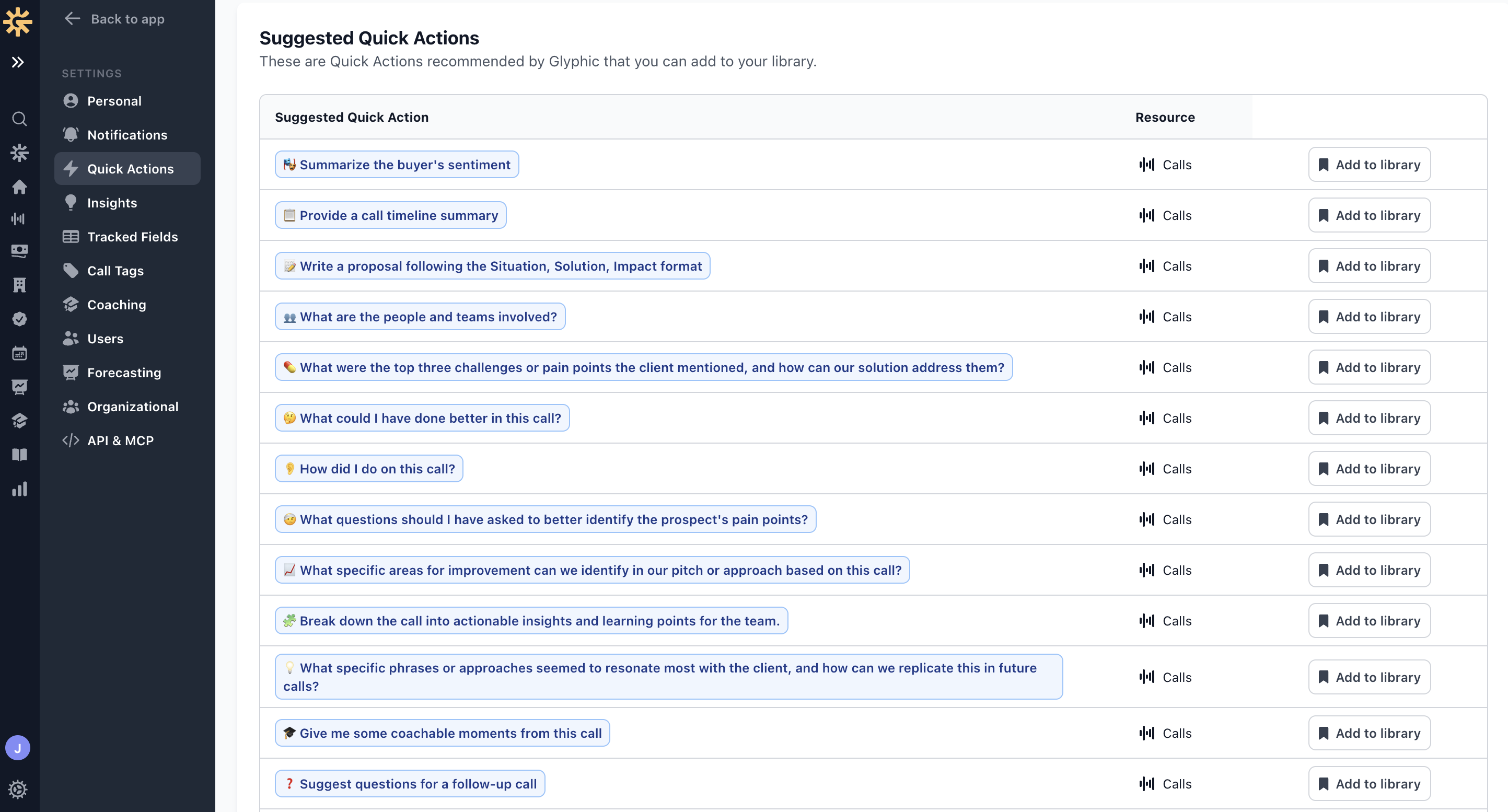
"Manage all your Quick Actions from Settings > Quick Actions."
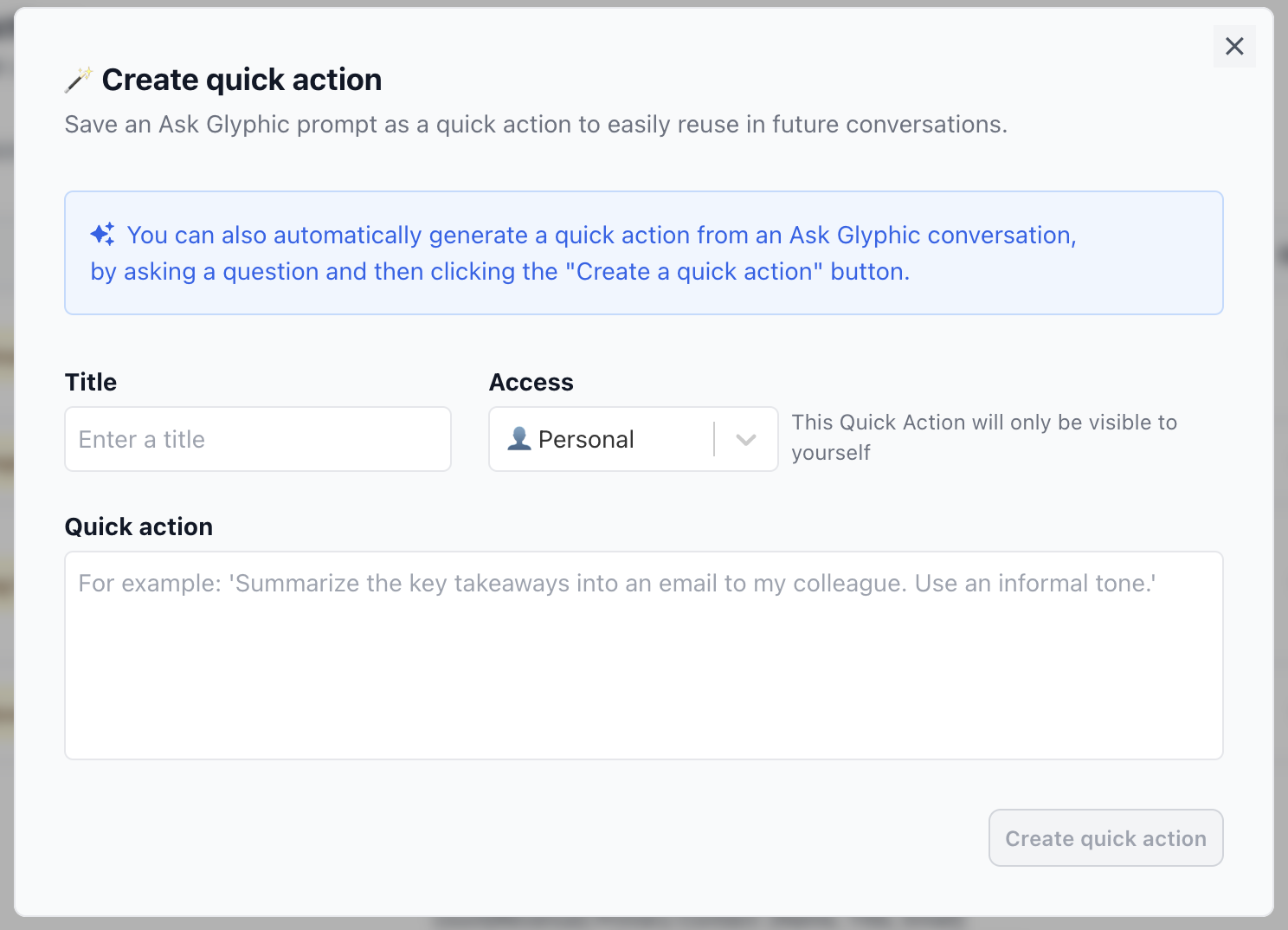
"Set a title, prompt, resource type, and access level when creating a new Quick Action."
Editing, Hiding, and Deleting Quick Actions
From Settings > Quick Actions, you can manage any action in your library:
Edit — click the pencil icon to update the title, prompt, or access level.
Hide — click the eye icon to hide an action from the panel without deleting it. Hidden actions can be restored at any time.
Delete — click the bin icon to permanently remove an action. You will be asked to confirm before deletion.
You can also manage visibility directly from the Quick Actions panel on a call or deal page — click Manage to see all actions, including any that are currently hidden.
If you have any questions or need help setting up Quick Actions for your team, reach out to support@glyphic.ai.