Company Hierarchies
Last updated: May 21, 2026
Overview
Airspeed supports parent-child company hierarchies, allowing you to navigate and understand the full organizational structure of your accounts — from ultimate parent companies down to their subsidiaries and divisions.
When a company has a hierarchy, Airspeed automatically imports all related companies from your CRM and links them together, so you always have the full picture of an account in one place.
How Hierarchies Work
Each company in Airspeed can have:
A parent company — the company one level above it in the hierarchy
Child companies — subsidiaries or divisions that report up to it
An ultimate parent — the topmost company in the tree (the root), which has no parent of its own
For example:
Acme Corp (ultimate parent)
Acme Engineering (child of Acme Corp)
Acme Labs (child of Acme Engineering)
Acme Sales (child of Acme Corp)
Hierarchy data is sourced directly from your CRM (HubSpot or Salesforce) and imported when companies are first encountered during deal and call processing.
When Hierarchies Are Imported
Airspeed imports a company's full hierarchy in two situations:
1. Deal Click (Manual Company Import)
When you click to create a company from a deal in Airspeed:
The company is created from your CRM data.
Airspeed checks whether this company has any parent or child relationships in the CRM.
If a hierarchy exists, a background task runs to import the full tree — you'll see an "Importing company hierarchy" message while this is in progress.
Once complete, all parent and child companies are available in Airspeed.
This runs as a background task, so the deal page remains responsive while the hierarchy is being imported.
2. Call Processing (Automatic During Call Analysis)
When a call is processed and Airspeed identifies a company from the associated deal:
If that company has not been imported yet, Airspeed imports its full hierarchy before continuing with call analysis.
This ensures all related companies — parents, siblings, and subsidiaries — are available for company matching.
Emails from subsidiary domains (e.g.
engineering.acme.com) are then correctly linked to the right company in the hierarchy.
Note: During call processing, hierarchy import completes before the rest of call analysis proceeds, to ensure accurate company attribution.
Viewing and Navigating Hierarchies in the UI
Breadcrumb Trail
On any company page that belongs to a hierarchy, a breadcrumb is shown at the top of the page indicating its position — from the ultimate parent down to the current company.
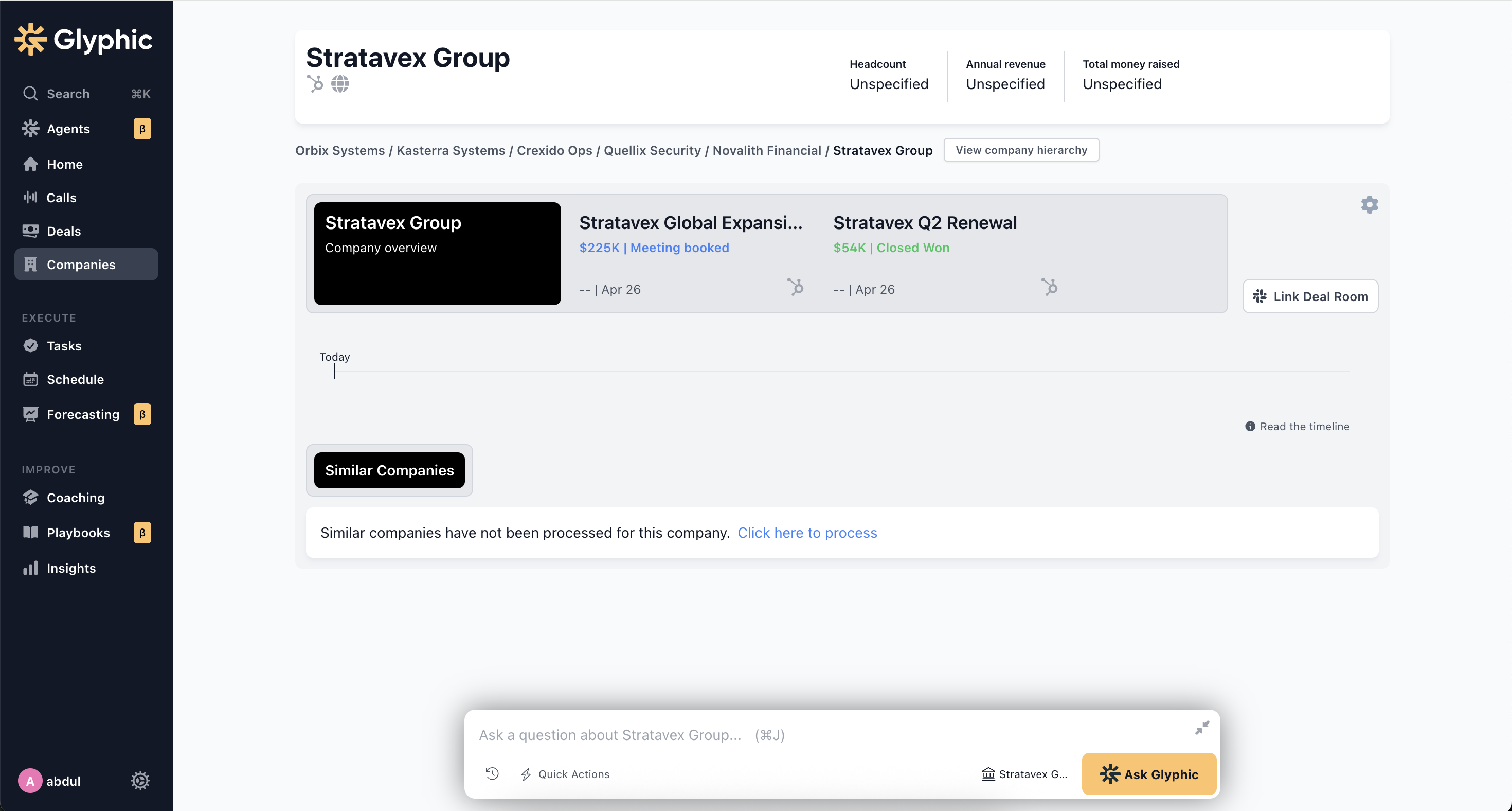
Clicking any company name in the breadcrumb navigates directly to that company's page.
Company Hierarchy Tree
Click "View company hierarchy" to open the full interactive hierarchy tree. The tree shows:
The complete structure from the ultimate parent down to all subsidiaries
The current company highlighted so you can orient yourself
Each company's associated deals, which can be expanded inline
Links to navigate directly to any company page within the tree
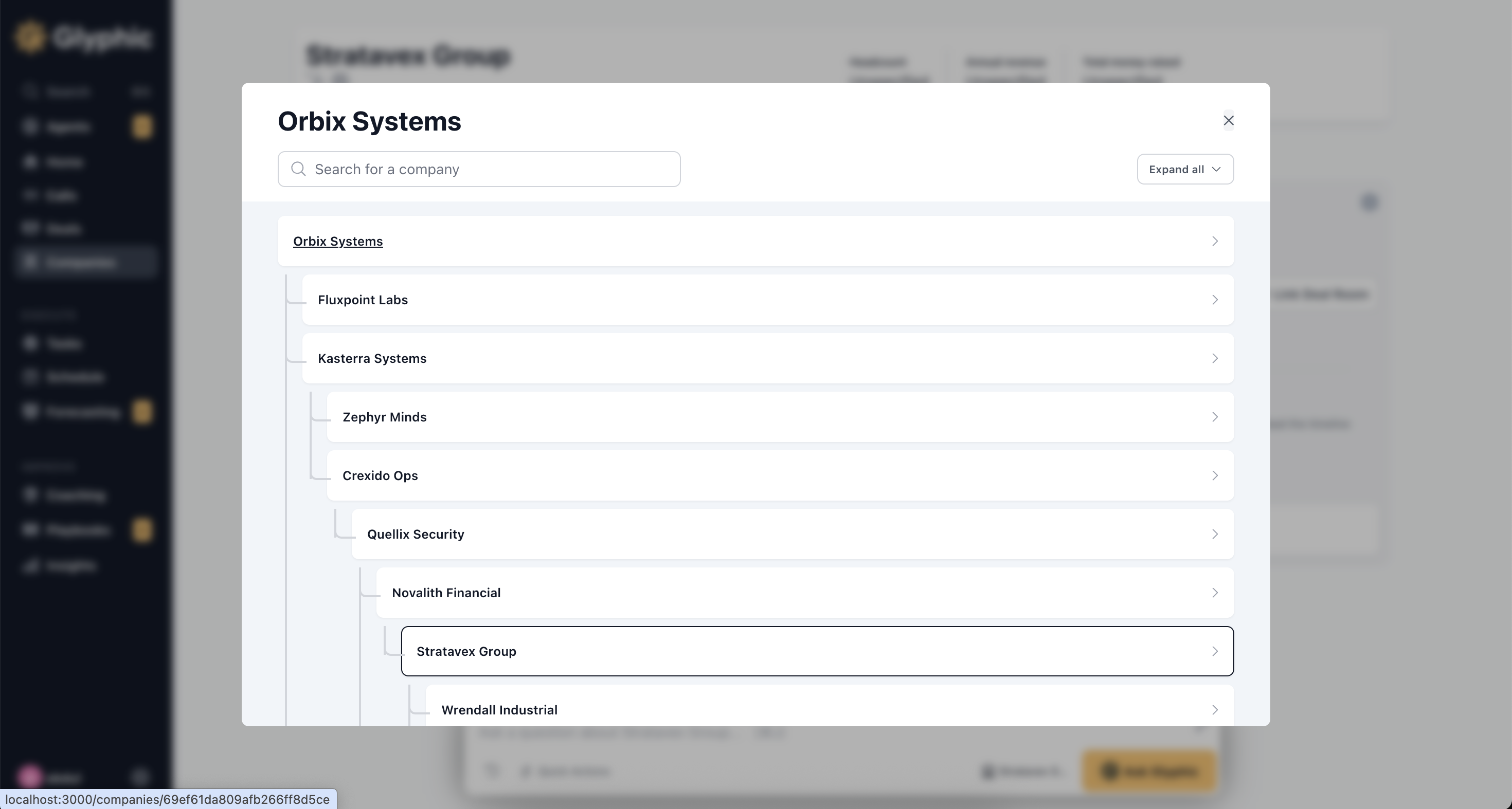
You can also search within the tree to quickly locate a specific subsidiary by name.
Note: For very large hierarchies (more than 50 companies), the tree is pruned to keep it navigable. Branches with additional companies are marked — navigate to that company directly to explore further.
Frequently Asked Questions
Does Airspeed automatically keep hierarchies up to date?
Hierarchies are imported from your CRM when a company is first encountered via deal click or call processing. They are not continuously synced in the background. If your CRM hierarchy changes, opening a deal linked to any company in the hierarchy will trigger a re-import.
Will calls be attributed to the parent or the child company?
Airspeed uses a two-step process to attribute calls to companies:
Deal matching. Airspeed first tries to find the best matching CRM deal for the call. It does this by looking up external participants as CRM contacts, then finding deals those contacts are associated with. If no contact-level deals are found, it falls back to deals linked to the contacts' companies. From the candidate deals, it picks the best match based on timing:
Preferred: a deal that was created before the call and is still open (or closed after the call date)
Also valid: a deal created before the call and closed on the same day
Last resort: a deal created within two weeks after the call
If the matched deal is linked to a specific company in your CRM, that company — whether a parent or a subsidiary — becomes the anchor for attribution.
Domain matching per participant. For each external email domain on the call:
If the domain matches the deal company's domain, the call is attributed to that exact company.
If the domain belongs to a different company (e.g. a co-attendee from another org), Airspeed resolves it to the root (ultimate parent) company for that domain.
If no deal match is found, all domains fall back to root-level resolution — each domain resolves to the ultimate parent of whichever hierarchy it belongs to.
This means a call associated with a deal linked to "Acme Engineering" will be correctly attributed to that subsidiary, not the parent "Acme Corp".
What if a company I expect to see in the hierarchy is missing?
The hierarchy is imported from your CRM. Check that the parent-child relationships are set up correctly in HubSpot or Salesforce. If they are, opening a deal linked to any company in the hierarchy will trigger a re-import.
What if a company appears in the hierarchy but has no calls or deals?
That company will still appear in the hierarchy tree and can be navigated to. Calls and deals will be associated as they are processed.
Still need help? Reach out to us at support@glyphic.ai with the company name and your CRM, and we'll investigate.