Deal Amount Field Rules
Last updated: May 28, 2026
If your organization tracks deal value in more than one CRM field — for example, new business in Annual Contract Value and renewals in Renewal Amount — Airspeed needs to know which field to read for each deal. Deal amount field rules let you define that mapping so pipeline totals, forecasting, insights, and coaching all show the right numbers.
Without rules, Airspeed reads a single org-wide amount field for every deal (configured under CRM Field Mapping). Rules add the flexibility to vary that per deal type and/or deal owner.
When to use deal amount field rules
You should set up rules when your CRM uses different numeric fields for deal value depending on the situation. Common examples:
Different deal types, different fields — New Business deals use Annual Contract Value, Expansion deals use Upsell Amount, Renewals use Renewal Value.
Team-specific amount fields — One team records revenue in Gross Revenue while another uses Net Revenue.
Regional or currency differences — Some teams use a home-currency field while others use a localized amount field.
If all your deals use the same amount field, you don't need rules — the single Deal Amount Field under CRM Field Mapping is sufficient.
How to set up deal amount field rules
Go to Settings → Organizational.
Find your CRM integration (HubSpot or Salesforce) and click the cogwheel ⚙ to open CRM settings.
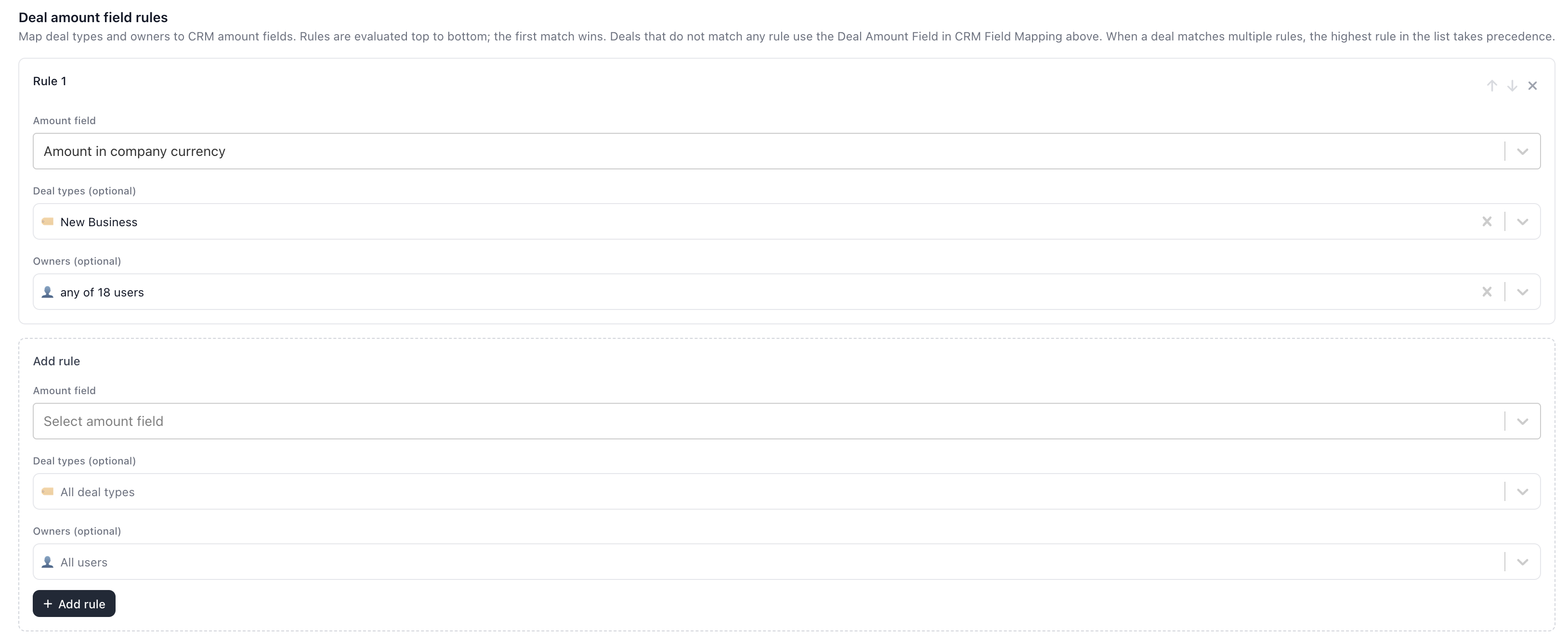
Scroll down past CRM Field Mapping to the Deal amount field rules section.
In the Add rule panel, configure the rule:
Amount field (required) — Select the CRM numeric field this rule should read from. The dropdown shows all numeric fields on your Deal object.
Deal types (optional) — Restrict this rule to specific deal types. Leave empty to match any deal type.
Owners (optional) — Restrict this rule to deals owned by specific users or a manager's team. Leave empty to match any owner.
Click Add rule.
Repeat for each additional mapping you need.
How rule ordering works
Rules are evaluated top to bottom, and the first matching rule wins. This means the order of your rules matters — if a deal could match more than one rule, the highest rule in the list takes precedence.
You can reorder rules using the ↑ and ↓ arrow buttons on each rule card.
Example
Suppose you have two rules:
Rule 1 — Amount field: Upsell Amount, Deal types: Expansion
Rule 2 — Amount field: Annual Contract Value, Deal types: Expansion, New Business
An Expansion deal matches both rules, but Airspeed uses Rule 1 because it appears first. A New Business deal only matches Rule 2, so Airspeed reads Annual Contract Value.
Fallback behavior
When a deal doesn't match any rule, Airspeed falls back in this order:
The org-wide Deal Amount Field set under CRM Field Mapping (the section above the rules).
If that isn't configured either, the CRM default — amount_in_home_currency for HubSpot, or Amount for Salesforce.
Organizations with no rules configured behave exactly as before — you don't need to change anything if a single amount field works for all your deals.
How conditions work on a rule
Each rule has two optional conditions: Deal types and Owners. When you set both on the same rule, a deal must satisfy both conditions to match (AND logic). When you leave a condition empty, it places no restriction on that dimension.
Deal types set? | Owners set? | Rule matches when… |
|---|---|---|
No | No | Every deal (catch-all) |
Yes | No | Deal type matches any of the listed types |
No | Yes | Deal owner matches any of the listed owners |
Yes | Yes | Deal type matches and deal owner matches |
Note: A rule with no conditions acts as a catch-all. If you place it at the top, no other rules below it will ever be evaluated. Catch-all rules are best placed at the bottom of your list as a default.
Where the resolved amount appears
Once Airspeed resolves which field to use for a deal, that value is applied everywhere in the product:
Deals table and Kanban board
Pipeline reviews and forecasting
Strategic insights and custom insights
Deal coaching and call prep
Slack notifications
The Airspeed API
You don't need to configure anything else — rules are applied automatically at sync time, and every feature reads the same resolved amount.
Tips
Start specific, end general. Put your most targeted rules (e.g. a specific deal type and owner) at the top and broader rules lower down.
Use the owner filter for team-level overrides. You can select a manager to include their entire team, using the same team picker as the deals table owner filter.
Test after saving. Open a deal that should match a rule and verify the amount shown in Airspeed matches the expected CRM field.
Still need help? Reach out to us with your CRM setup and we'll help you configure the right rules.